
Image
Free Background Removal — How to Cut Out Photos Cleanly
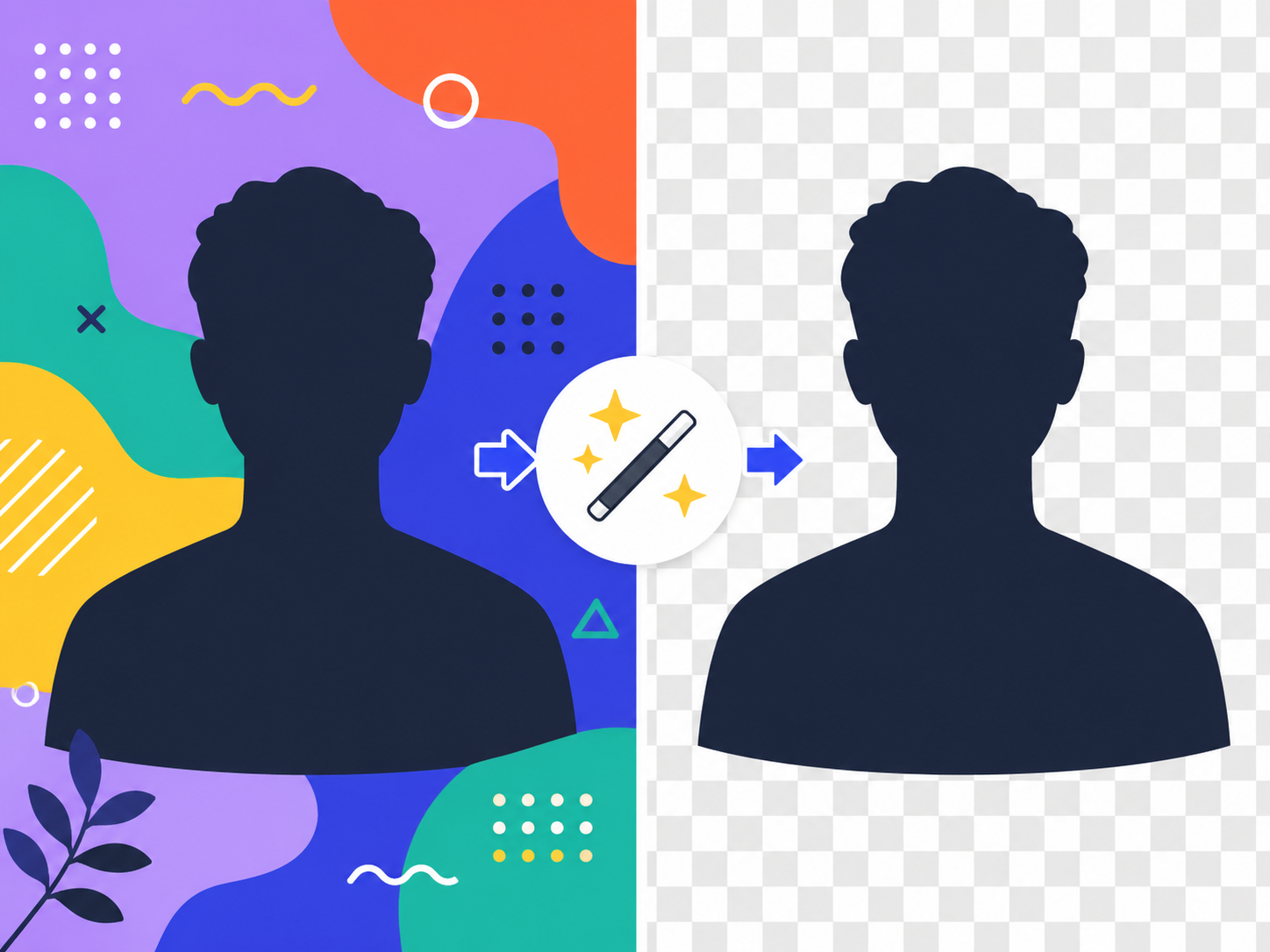
What used to take an hour with the Photoshop pen tool now happens in a single click. But not every photo cuts out equally well — some come back crisp, others leave hair pixelated against the new background. The difference comes down to a handful of predictable factors. Here's what to expect.
How AI background removal actually works
Modern background removal uses a neural network trained on millions of labeled photos. For every pixel, the model decides 'foreground or background?' and produces a mask — a per-pixel decision grid. The mask is then used to make the background transparent in the output.
EllyTools runs this model entirely in your browser. Your photo never gets uploaded to a server. The model itself is downloaded once and cached, so subsequent images process even faster.
Photos that cut out cleanly
- •Clear color contrast between subject and background (dark person on white wall)
- •Even lighting with minimal shadow
- •Sharp focus, no motion blur
- •Subject dominates a large portion of the frame
- •Plain background without busy patterns
Photos that struggle
- •Wispy hair against a similar-toned background — the model loses the tips
- •Glass, transparent objects, and reflections
- •Group shots where subjects overlap each other
- •Low resolution or motion-blurred shots
- •Subjects against intricately patterned backgrounds
Try it on your own photo
Upload and get a transparent PNG back in 5–10 seconds. Everything runs in your browser — photos never leave your device.
Background RemoverFixes when the result isn't quite right
- 1
Upload a higher-resolution version
The model picks up edge details better at higher resolution. Aim for at least 1080px on the long edge for mobile photos.
- 2
Use a better-lit source photo
Backlit or heavily shadowed photos blur the subject edges, confusing the model. Re-shoot under even natural light if possible.
- 3
Touch up manually for high-stakes work
Open the result PNG in Photoshop or free GIMP and refine the hair edge by hand. 90% AI + 10% manual is the fastest workflow for professional output.
- 4
Composite onto a new background
Place the transparent PNG over a solid color, scenic photo, or studio backdrop. New backgrounds hide many edge imperfections.
Practical uses
**Profile photos**: Swap a casual background for clean white before posting to LinkedIn or attaching to a résumé. **Product photos**: E-commerce sites usually want white backgrounds — five seconds with a remover beats a lightbox setup. **Composites**: Drop yourself onto a destination background for a travel photo without traveling. **Memes and creative work**: Pull a friend's face out and put it somewhere unexpected.
Note on rights: if the photo features someone else, especially for commercial use, make sure you have permission or rights to use their image. Background removal doesn't change copyright or likeness rules.
Frequently asked questions
Why is processing slow?
Large images take 5–30 seconds. The first photo also has to download the model file, which is slower the first time. Subsequent images are quick.
How do I get a white background instead of transparent?
Convert the resulting PNG to JPG using an image converter tool. JPG doesn't support transparency, so anything transparent fills with white (or whatever background color you choose).
Does it work on pets and objects?
Yes, though slightly less reliably than on people. The model is trained on a mix of subjects. Fluffy animals are the trickiest — edges tend to come out softer than on humans.
Related tools
Do the thing this article describes.