
Image
Instagram Photo Sizes — The Complete 2026 Guide
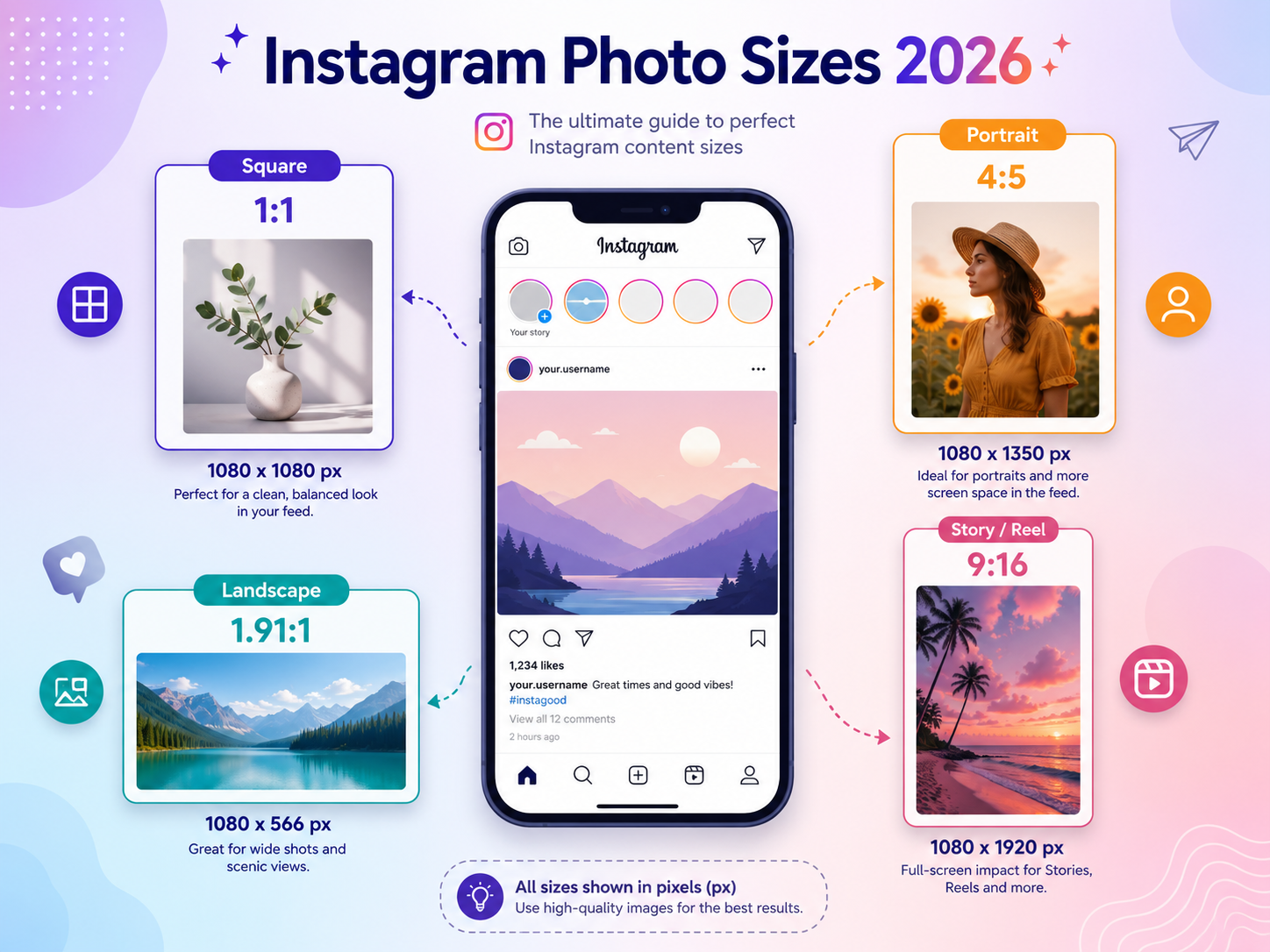
Ever uploaded a photo to Instagram only to have it come out blurry or oddly cropped? Nine times out of ten, the problem is dimensions and aspect ratio. Resize your photo to Instagram's preferred size before uploading and the platform's re-encoding will leave it nearly untouched — much sharper than letting Instagram crunch a larger file.
Recommended sizes at a glance (2026)
Different placements want different dimensions. Here's the full reference:
| Placement | Recommended size | Aspect ratio |
|---|---|---|
| Feed — square | 1080 × 1080 px | 1:1 |
| Feed — portrait | 1080 × 1350 px | 4:5 (largest in-feed) |
| Feed — landscape | 1080 × 566 px | 1.91:1 |
| Stories / Reels | 1080 × 1920 px | 9:16 |
| Profile photo | 320 × 320 px (shown circular) | 1:1 |
| IGTV / long-video cover | 420 × 654 px | 9:16 |
Why 4:5 portrait wins in the feed
The Instagram feed is built for mobile scrolling. Landscape posts (1.91:1) take up the least vertical space and earn the shortest attention windows. Square (1:1) is safe but unremarkable. Portrait (4:5) fills the most screen on a phone, so on average it captures 1.5–2× more dwell time than landscape.
The profile grid is no longer square. It shows 3:4 portrait tiles, so a 4:5 upload survives it almost intact — about 3% trimmed from each side. A 1:1 square loses 12.5% from each side there, and a landscape post around 30%.
So the breathing room belongs at the left and right edges, not the top and bottom. Keep faces and text away from the sides. The old advice to leave headroom for the square crop now protects the wrong edge.
Generate every social size from one photo
Upload one source image and get correctly-sized files for Instagram feed, stories, reels, profile, and the major sizes for Facebook, X, and YouTube too.
Social Media Image ResizerThe real reason uploads look blurry
Instagram re-encodes every photo you upload. When you give it a large image, it downscales aggressively and compresses heavily — fine detail gets crushed. When you give it an image smaller than 1080px on the long edge, it upscales, which softens everything further.
The fix is to pre-resize the photo to exactly the size Instagram wants (1080px on the long edge). Instagram then has less work to do, and your detail survives the compression pass.
Upload checklist that avoids the usual mistakes
- 1
Crop to the right aspect ratio first
Pick 4:5 or 1:1 for the feed, 9:16 for stories and reels. Decide before you start editing.
- 2
Resize to 1080px on the long edge
Anything larger gets stripped down by Instagram anyway. Exactly 1080px minimizes the platform's re-compression.
- 3
Save as JPG at quality 85–90
PNG is wasteful for photographs. JPG quality 90 leaves enough headroom for Instagram's compression to land cleanly.
- 4
Upload over wifi when you can
Slow mobile connections often trigger more aggressive compression on the app side. Wifi gives you the cleanest result.
Preview before you post
See exactly how your photo will look in feed, stories, and on the grid before hitting publish. Catch awkward crops or composition issues early.
Instagram PreviewFrequently asked questions
Is 1080×1920 also the right size for Reels?
Yes — 9:16 vertical, 1080×1920 is the standard. Anything bigger gets downscaled by Instagram, so the larger file is wasted bandwidth.
What happens if I upload a square photo to Stories?
Instagram either adds black bars top and bottom or auto-zooms to fill the 9:16 frame. Pre-crop to 9:16 to keep control of the composition.
Can I mix aspect ratios in a carousel?
The first photo's aspect ratio is applied to every slide. Pick one ratio and prep all your slides at the same size up front.
My profile photo looks soft
Profile photos display at roughly 320×320, but upload at 1080×1080. Downscaling from a higher-resolution master gives a sharper rendered thumbnail than uploading at the display size.
Related tools
Do the thing this article describes.